
Launchpad is gone in macOS Tahoe. Here’s how to keep your apps in folders
macOS Tahoe removed Launchpad. Your apps now live in the Apps view of Spotlight, and macOS sorts them on its own.
What changed
Open Spotlight and press Command-1 to see all your apps. macOS puts them into categories by itself. You can’t make your own folders there or move apps between groups – and the folders you had in Launchpad are gone.
Option 1: the Applications folder in the Dock
- In Finder, find the Applications folder in the sidebar.
- Drag it to the right side of the Dock, next to the Trash.
- Control-click it in the Dock and under “View content as” choose Grid.
You get every app in one grid, sorted by name. It feels close to Launchpad, but without folders.
Option 2: your own folders as Dock stacks
Make a folder for each group, fill it with app aliases and drag it to the Dock. It takes a few minutes and works on any Mac. Step by step: how to make app folders in the Mac Dock.
Option 3: TinyFolder
TinyFolder gives you a folder you fill yourself – and puts it right in the Dock. Pick the apps, click Pin to Dock, and one click on the tile opens them. You decide how it looks: glass, color or texture, layout, icon size.
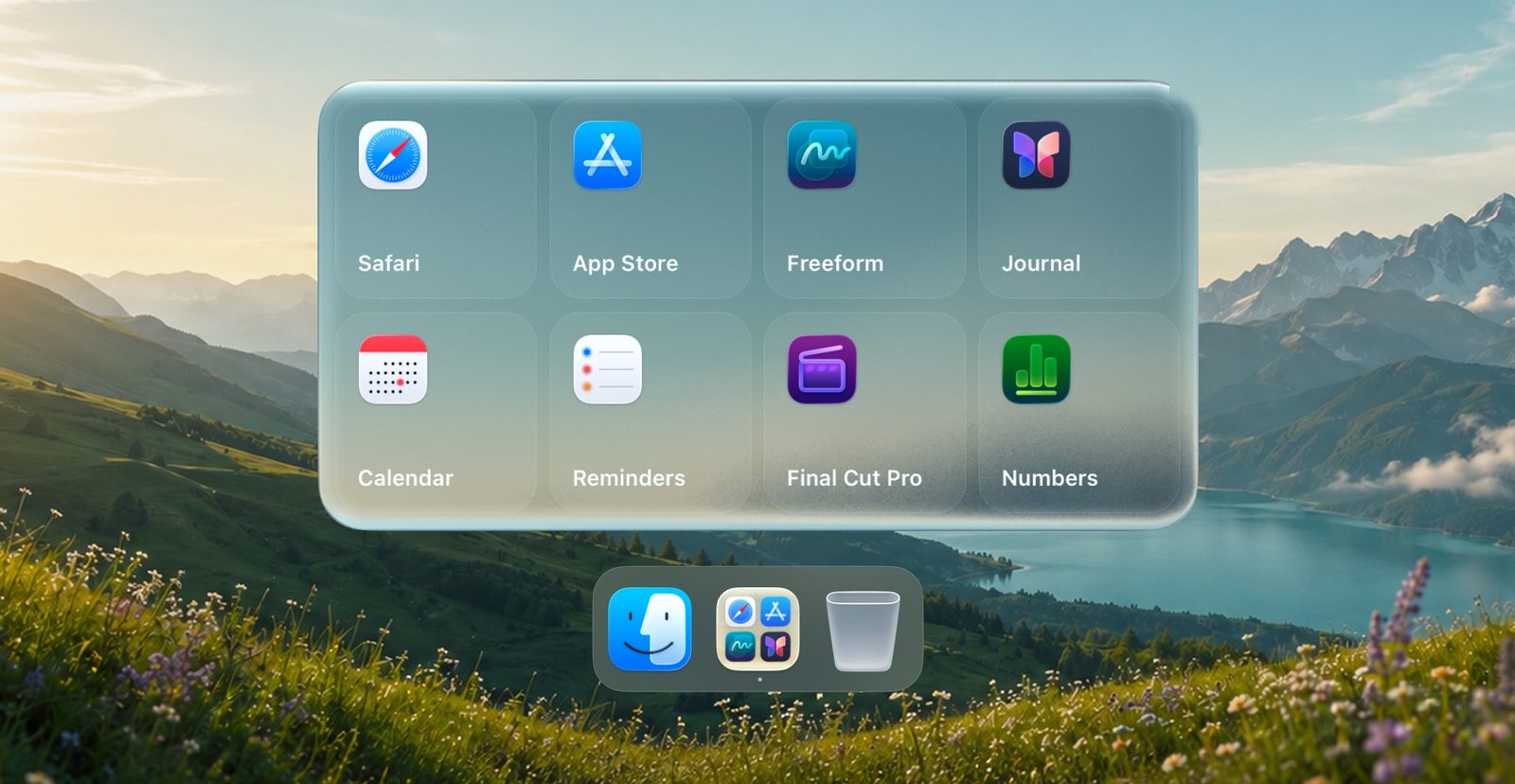
- TinyFolder on the Mac App Store – one folder in the Dock.
- TinyFolder from our site – any number of folders with Pro.