
How to make app folders in the Mac Dock
On iPhone you drop one app onto another and get a folder. The Mac Dock can’t do that. Here are two ways to get app folders on a Mac anyway.
The short answer
macOS has no app folders in the Dock. You have two options: add a folder of app shortcuts to the Dock as a stack, or use an app that puts a folder of apps right in the Dock, like TinyFolder.
Option 1: a Dock stack with app aliases
This works on any Mac and costs nothing.
- In Finder, make a new folder, for example in your Home folder. Name it after the group: Work, Design, Games.
- Open the Applications folder in a second Finder window.
- Hold Option and Command and drag an app into your new folder. This makes an alias – a shortcut – and leaves the app where it is. Repeat for every app you want in the group.
- Drag your folder to the right side of the Dock, next to the Trash.
- Control-click the folder in the Dock. Under “Display as” choose Folder or Stack. Under “View content as” choose Grid.
Now a click on the folder opens your apps in a grid. Stacks have limits, though: they live only on the right side of the Dock, next to the Trash, and the icon is a plain folder or a pile of icons. One thing they do well: you can drop a file onto an app in the stack to open it there.
Option 2: TinyFolder
TinyFolder puts a folder of the apps you choose right in the Dock. Its icon is made from the apps inside, so you can see what’s in there at a glance. One click opens it.
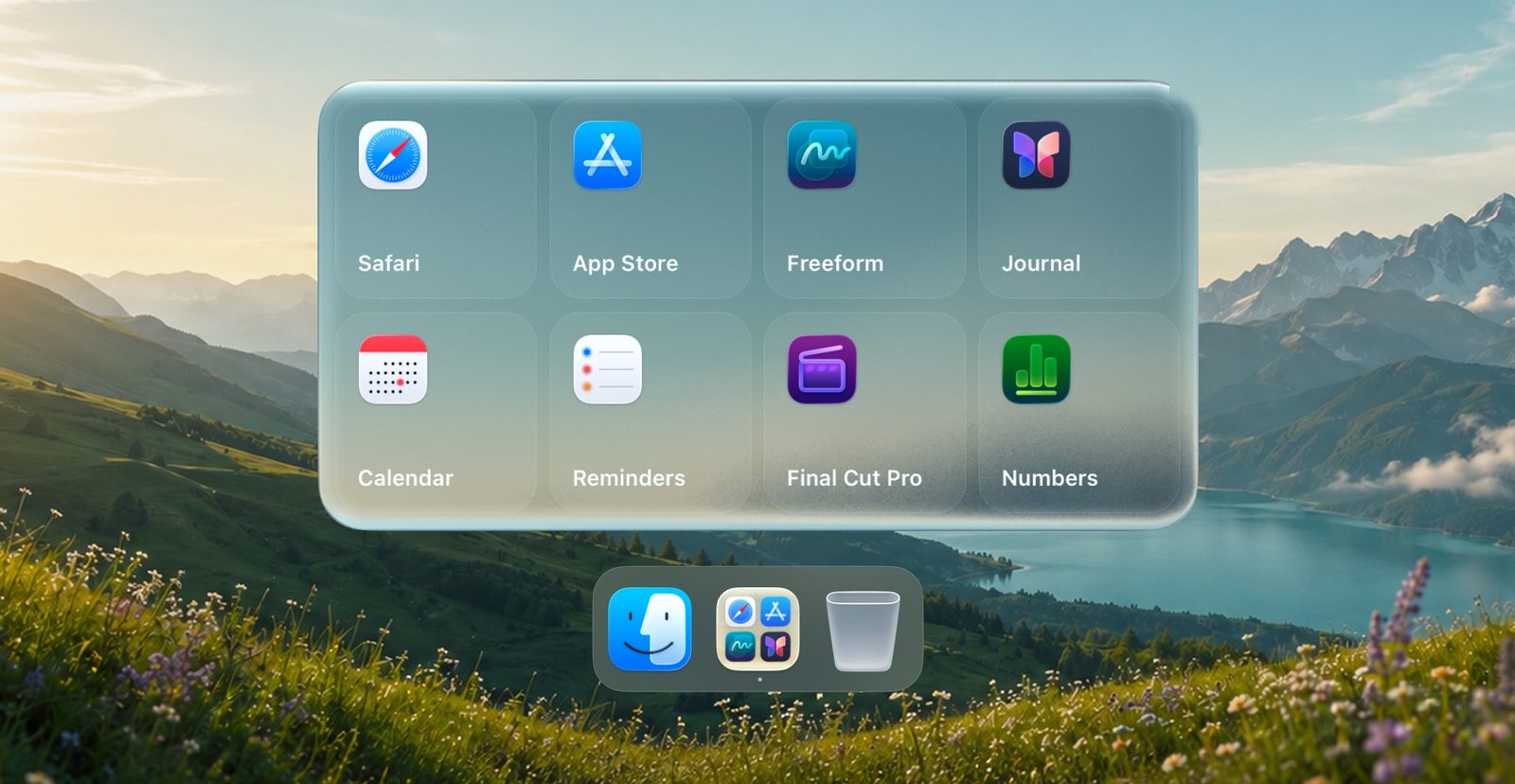
- Install TinyFolder from the Mac App Store.
- Pick the apps for your folder.
- Click Pin to Dock.
- Click the new tile in the Dock to open the folder.
Then make it yours: glass, color or texture, layouts that fit the number of apps, icon size, labels. Every change shows up in a live preview.
The Mac App Store version gives you one folder in the Dock. Need more? The version from our site can pin any number of folders with Pro.
Will running apps still show in the Dock?
Yes. macOS puts every running app in the Dock, and no app can switch that off. A folder clears out the apps you are not running: they sit in one folder instead of a row of icons.
On macOS Tahoe?
Launchpad is gone in macOS Tahoe, and with it the folders you made there. See how to keep your apps in folders without Launchpad.